Preface
Continued from the previous article on building a nostalgic emulator (see article:Deploying Web-based Retro Game Emulator Using Docker Based on emulatorjs), I continued to look for similar interesting projects built with Docker to enrich the "Game World" section of my blog. After some searching, I found this project on GitHub: rwv/chinese-dos-games. A netizen made it into a Docker image: oldiy/dosgame-web-docker, so this time I will use it to build the Docker container.
Deploy dosgame
Since this Docker image has 42 built-in games stored in the `/app/static/games` directory inside the container, you cannot directly use the `-v` parameter to mount the host folder to the `/app/static/games` directory during the first startup. Because the host folder is empty, mounting it directly will cause these games to disappear (actually, it's not impossible, but then you would need to manually add each game). Therefore, the correct steps are to deploy without the `-v` parameter first. After Docker runs successfully, copy the contents of `/app/static/games` to the host's mount folder, delete the Docker container, and then redeploy the container with the `-v` parameter. This way, if you want to add games in the future, you can operate directly in the host's mount directory.
Deploy directly without the -v parameter
docker run -d --name dosgame -p 262:262 oldiy/dosgame-web-docker:latestCopy the /app/static/games folder inside the container to /docker/dosgame/games on the host
mkdir -p /docker/dosgame
docker cp dosgame:/app/static/games /docker/dosgame
Delete the created container
docker stop dosgame
docker rm dosgame
Redeploy with the -v parameter
docker run --name dosgame -d --restart=always \
  -p 262:262 \ #映射端口根据自己实际情况修改
  -v /docker/dosgame/games:/app/static/games \ #将宿主机的对应文件夹挂载到容器
  oldiy/dosgame-web-docker:latest
Access the game
Usehttp://宿主机IP:262Access the game:

The default games provided are as follows:


The interface of The Legend of Sword and Fairy:
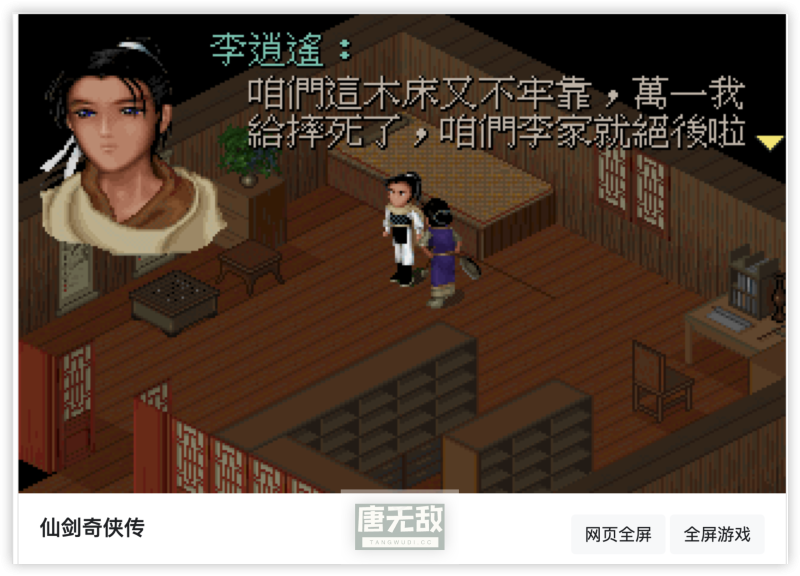
Some games do not support the mouse, such as The Legend of Sword and Fairy; some do, such as Richman 3, which you can explore on your own. General keyboard keys: Enter to confirm, Shift to select, ↑ ↓ ← → for directions, Z and X correspond to controller B and A, and sometimes Space is also for selection. You can try them out.
For me, just to experience some nostalgia, 42 games are more than enough. For the actual experience, please visit the blog's "Game World" - "Invincible DOS Game Library", or you can click directly:Invincible DOS Game Library。
Configure public network access
If you want to publish to the public network, you need to choose the most suitable publishing method based on your actual environment and the reverse proxy you use. You can refer to several of my previous articles:
1、Docker Series: Building Your Own Reverse Proxy Based on NPM Using Docker
2、Linux Panel Series: Configuring Reverse Proxy and Publishing Using Non-443 Ports
3、Home Data Center Series: Getting Cloudflare for Free via Domestic ICP-Filed Cloud Hosts to Achieve Fast Access to Domestic Sites from Abroad
4、Home Data Center Series: Getting Cloudflare for Free via Home Broadband Without Public IP to Achieve Fast Website Building (Universal)
Among them, the 1st and 2nd methods are suitable for environments with a public IP but without a legal 443 port (home broadband, non-filed cloud hosts), where non-standard ports need to be added after the URL (if using Cloudflare to build a website, no port needs to be added, but you need to customize the origin server port, which you can refer to:Home Data Center Series: Solving the Problem of Having a Public IP but No Legal 80 or 443 Ports for Website Building via Cloudflare's Origin Rules). The 3rd method is suitable for cloud hosts with ICP filing, and the 4th method is suitable for all environments (including environments without a public IP), which is also my recommended method (regardless of whether your environment has a public IP, because this method does not require running HTTPS traffic directly on the public network).